

Notifications
By the end of this page you will know how to configure the emails a form sends after a submission, preview them with real-looking data, and what changes with TrazoForms Pro.
Notifications are under the Submit button at the end of the form, in Email notifications.
The two notifications of every form
Section titled “The two notifications of every form”| Notification | Sent to | Subject |
|---|---|---|
| Admin notification | The site administrator (unless you set a fixed address) | New entry in "{form_title}" |
| Participant confirmation | The first email field the person filled in | Confirmation: {form_title} |
Both include every submitted field through {all_fields}. The words between braces are merge tags, replaced with the real data when the email is sent.
Settings of each notification
Section titled “Settings of each notification”All of these are free, including on these two default notifications:
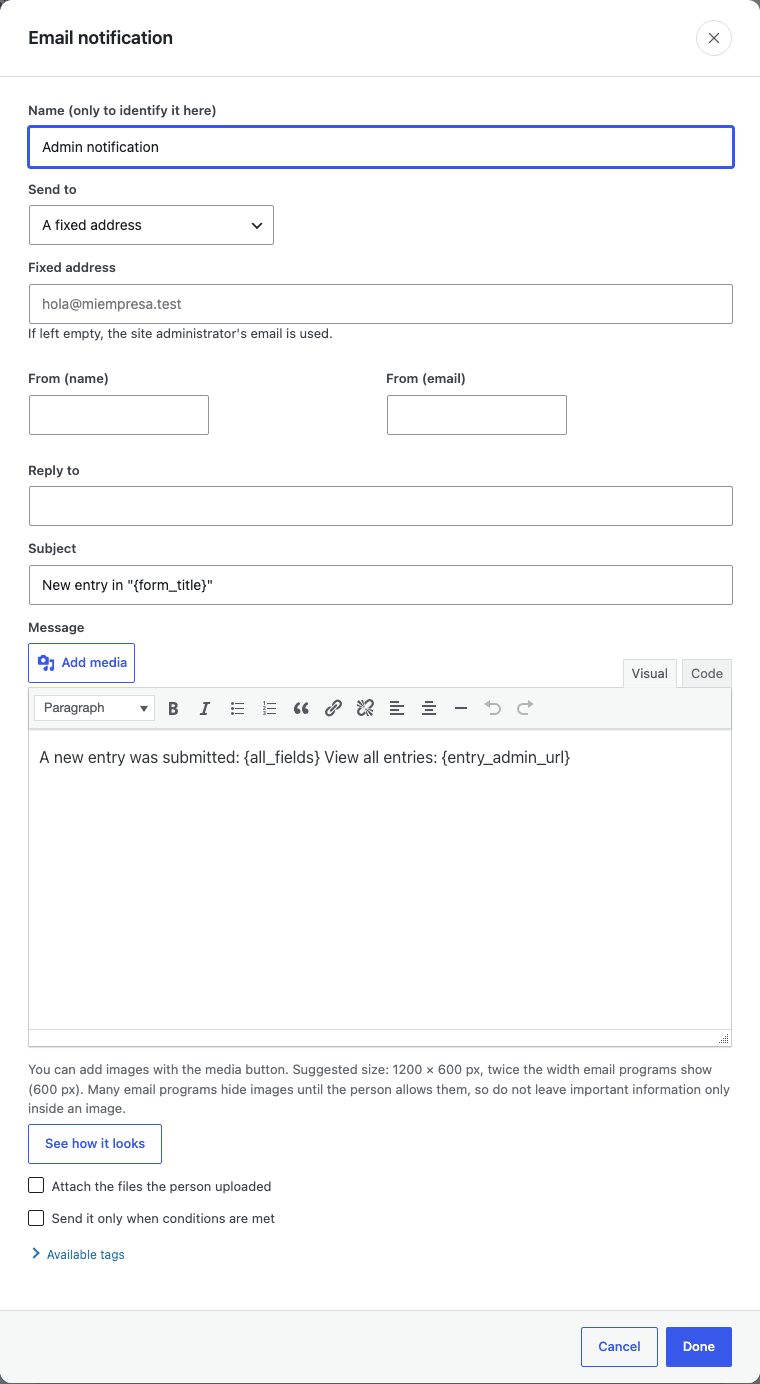
| Setting | What it does |
|---|---|
| Name | Only to identify it here. |
| Enabled | A disabled notification is kept but not sent. |
| Send to | A fixed address, with a note that the site administrator’s email is used if you leave it empty; or The address the person entered, using the first email field with a valid address. |
| From (name) / From (email) | |
| Reply to | |
| Subject | Plain text, with merge tags. |
| Message | A visual editor with images, the same one used across the plugin. The suggested image size is 1200×600 px, twice the email’s own width, so images stay sharp. |
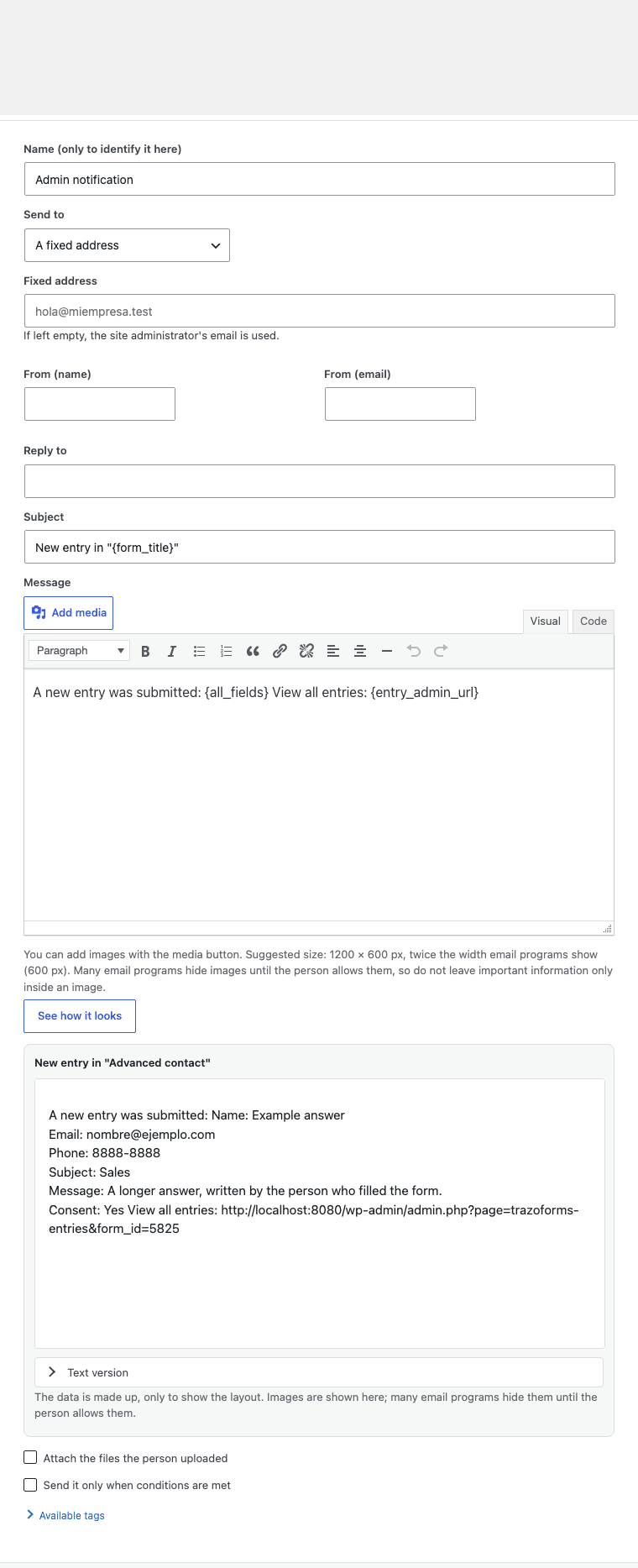
Click See how it looks to preview the email with realistic sample data — this button is free, not a Pro feature. It reuses the exact same code that builds the real email, shown in a sandboxed frame that can never run a script, with the plain-text version available underneath. The sample values come from, in order: the field’s own default value, its first option (for a dropdown or multiple choice), its placeholder, or otherwise a generic example for that field type.
Advanced notifications
Section titled “Advanced notifications”The free version’s two notifications above can be fully edited, reordered, turned off, and removed — what Pro adds is the ability to create more:
- More than two notifications per form, with Add notification. For example, one per department.
- Send it only when conditions are met, with the same rules as conditional logic. For example, send to sales only when the subject is Sales.
- Attach the files the person uploaded.
- Duplicate notification, to start a new one from an existing setup.
Without a Pro license, the Add notification and Duplicate notification controls, and the attachments and conditions checkboxes, do not appear at all — not just disabled. Remove and reordering a notification stay available either way, so someone stepping down from Pro can still tidy up what already exists.
Edge cases
Section titled “Edge cases”- A notification created under Pro keeps its conditions and attachment setting if the site later runs without a license — saving the form again does not silently turn those off, it simply cannot edit them until Pro is active again.
- A spam submission never triggers any notification, including the two default ones — see Availability and spam.
- A brand-new notification, created without a license, never inherits attachments or conditions — there is nothing to preserve for something that did not exist before.
Next step
Section titled “Next step”Continue to Confirmations to decide what the visitor sees after submitting.