

The builder
By the end of this page you will know how the editing screen is organized, how to select and change any part of a form, and how saving works.
Layout
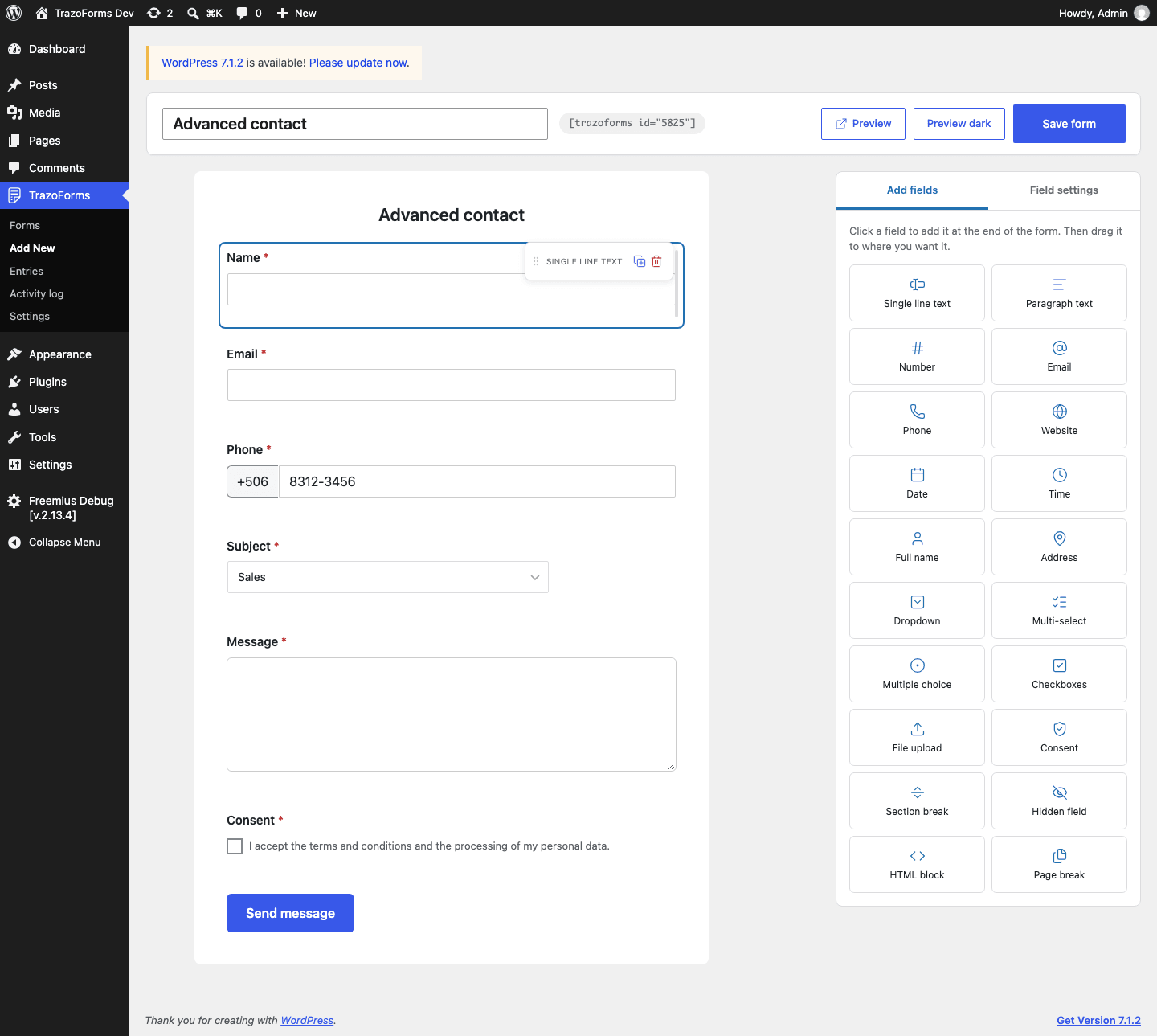
Section titled “Layout”The builder has two columns:
- The canvas, on the left. It is the real form, drawn with the exact same code and styles a visitor gets — not a mockup. If you change the form’s design, the canvas changes with it.
- The side panel, on the right, with two tabs: Add fields and Field settings. Selecting any element switches the panel to its settings automatically.
The top bar has the form title, its shortcode, a Preview link, the Preview dark / Preview light toggle, and Save form.
Select what to edit
Section titled “Select what to edit”Click any field in the canvas to see its settings under Field settings. Two more things can be selected:
- Form, the tag at the top left of the canvas. It holds the design of the whole form: frame, header, colors, typography and, in the Pro version, multiple pages.
- Submit button, at the end of the form. It always stays last — it has no drag handle and cannot be moved or removed. It holds its own text, alignment, width, size and color (see Design), and the email notifications and confirmation settings.
Add fields
Section titled “Add fields”Under Add fields, click a field type. The new field is added at the end of the form. See Field types for what each one does.
Reorder and remove fields
Section titled “Reorder and remove fields”Each field has a small toolbar with these actions:
- Drag the handle to move the field with the mouse.
- Move up and Move down do the same with a click, or from the keyboard.
- Duplicate field.
- Remove field, after asking for confirmation.
Start from a template
Section titled “Start from a template”The first time you open a brand-new, empty form, the builder shows nine templates to start from — see Templates. Each thumbnail is a small version of the real form, not a drawing, so what you see is what you get. This screen only appears for a form that has no fields yet; once you save anything, it is gone for good on that form.
Preview the published form
Section titled “Preview the published form”Preview opens the real, published form in a new browser tab. It only appears once the form has been saved at least once, and it always shows the last saved version — not changes you are still editing.
Preview light and dark
Section titled “Preview light and dark”Preview dark and Preview light, in the top bar, only change how the canvas looks while you work. They never change the form itself: the mode visitors get is decided under Form → Colors → Color mode (see Design). The canvas itself never follows your operating system’s light/dark setting — only an explicit click — so you can always check both versions regardless of how your own computer is set.
Keyboard
Section titled “Keyboard”The builder works fully without a mouse and without JavaScript — reordering with Move up / Move down simply reloads the page. With JavaScript on, a few things are worth knowing:
- In the notifications and confirmations list, pressing Enter or Space on a row opens its editing window; the row’s own switch, duplicate, remove and move controls keep responding to their own key without opening it.
- Only one row can be “borrowed” into the editing window at a time.
- Closing the window (Done, Cancel, × or Esc) returns focus to the row you were editing.
- A field’s width handle also responds to the left and right arrow keys, moving it in steps of the 12-column grid.
Next step
Section titled “Next step”Continue to Field types to see everything a form can ask for.