

Entries
By the end of this page you will know how to review, organize, correct and export the submissions of a form. Go to TrazoForms → Entries and choose a form.
The entries list
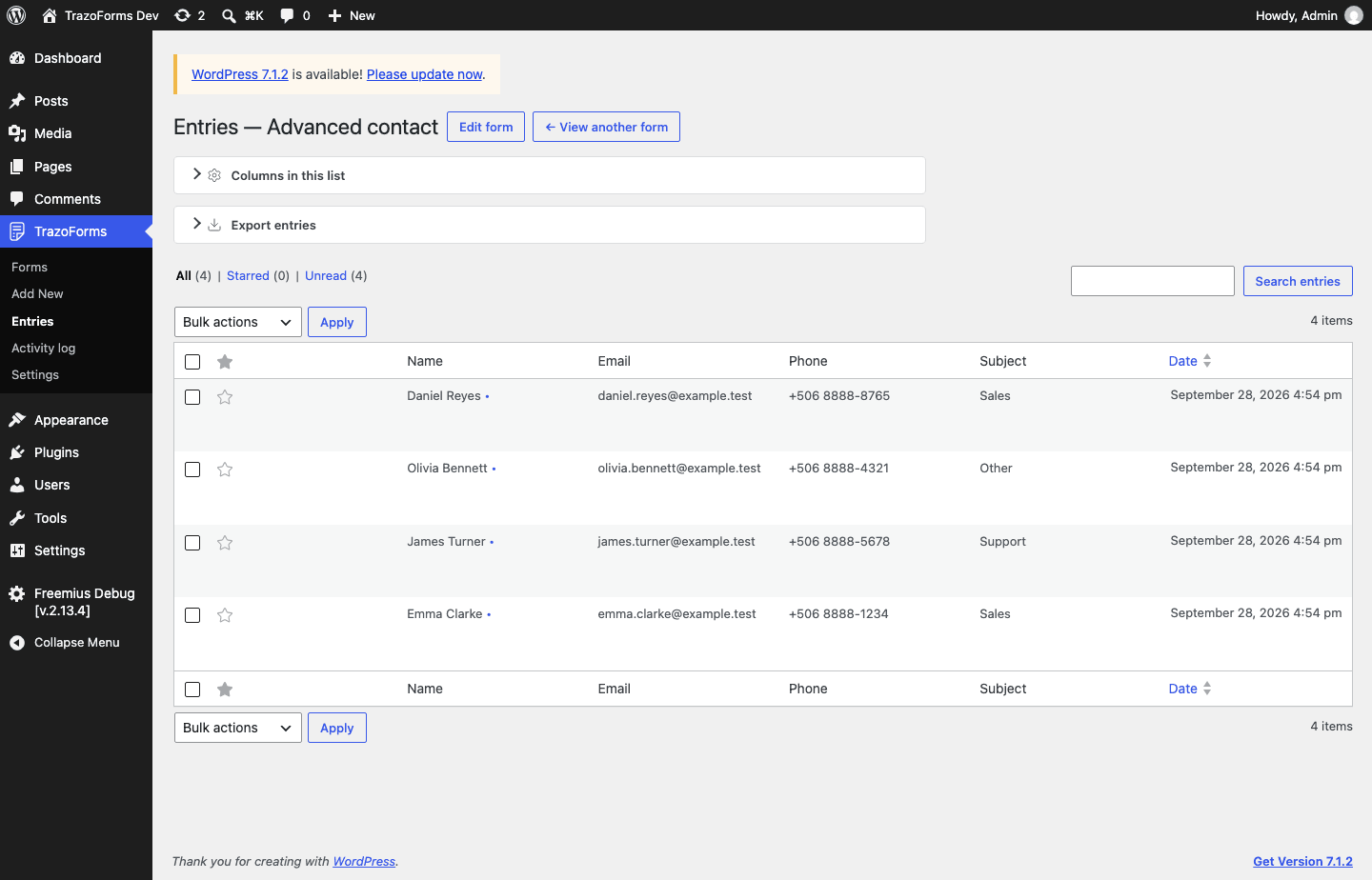
Section titled “The entries list”- Views: All, Starred, Unread, Spam and Trash, each with its count. Spam and Trash only appear once they have at least one entry.
- Search entries looks through every submitted value in the entry, not one chosen field at a time.
- Sorted by date, 20 entries per page.
- Unread entries appear in bold with a dot next to them, so they are never marked by color alone.
Actions
Section titled “Actions”On each entry, or on several at once with the bulk actions available for its view:
- Star and Unstar.
- Mark as read and Mark as unread. Opening an entry marks it as read.
- Mark as spam and Not spam.
- Move to trash, Restore and Delete permanently. Deleting permanently also deletes its notes and any files it had uploaded.
Choose which columns you see
Section titled “Choose which columns you see”Open Columns in this list to pick which fields show as columns — any field that is not layout-only is eligible, including file uploads. Without a choice, the first four fields are shown. This is saved on the form for your whole team, and is separate from which columns an export includes (below). Removing a field from the form later is handled gracefully: it is just dropped from an existing column choice, without breaking anything.
Entry details
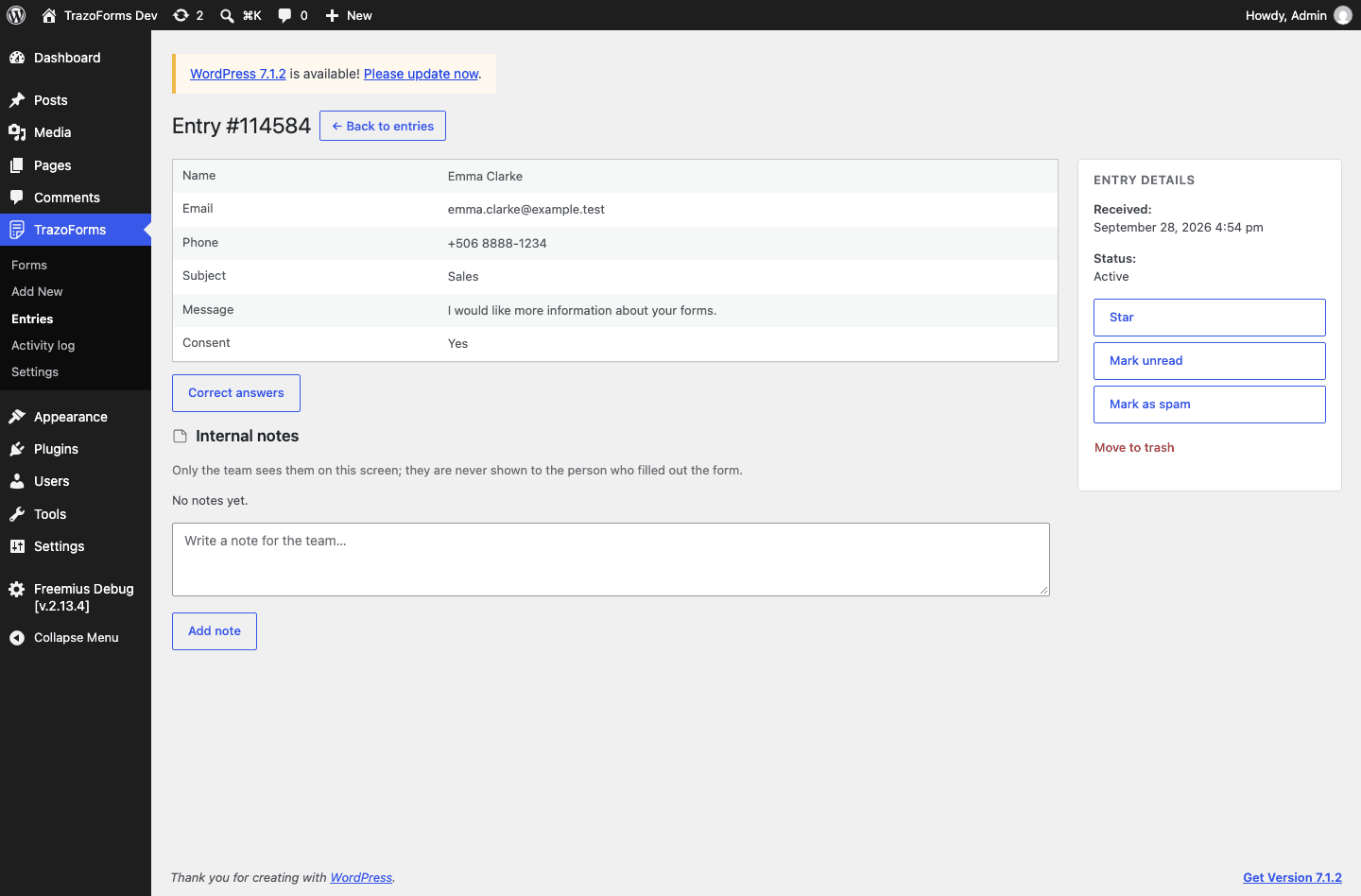
Section titled “Entry details”View details shows every column you chose, when the entry was received, and its status, with the same star/read/spam/trash actions in a side panel.
Correct an answer already received
Section titled “Correct an answer already received”Click Correct answers to switch the detail into an edit form, using the exact same controls the public form uses — a dropdown edits as a dropdown, consent as its checkboxes, and so on — just without the “required” restriction, so you can also clear a field if needed.
- Files cannot be changed from here. They are listed, with a note that they need to be replaced by other means.
- Nothing is revalidated, and no notification or confirmation runs again. This is meant for your team correcting a typo, not for resubmitting the form.
- The date and status of the entry never change.
- A signed note is added automatically, naming which fields changed (their labels, not the old and new values) — never anything if nothing actually changed.
Internal notes
Section titled “Internal notes”Each entry can have notes for your team, shown with who wrote them and when — an automatic system note, such as one left by spam detection or an edit, is shown as written by “TrazoForms (automatic)”. Notes are never shown to the person who filled out the form.
Export
Section titled “Export”Open Export on the entries screen:
- Columns to include — its own choice, separate from the list columns above; if you select none, all are included.
- From and To: a date range. Both days are included in full.
- Status: active, spam or trash.
- Format: Download for Excel (.xlsx), recommended, or Download CSV. Your last choice is remembered for next time.
A Consent field with several checkboxes exports one column per checkbox. A File upload field exports the file’s private download link (which still requires an administrator’s session to open), not the file itself. Every export is recorded in the activity log, with who ran it and how many entries it covered.
Personal data requests
Section titled “Personal data requests”Entries are wired into WordPress’s own Tools → Export Personal Data and Tools → Erase Personal Data, so requests are handled the same place as the rest of your site — see Privacy and data for the details.
Activity log
Section titled “Activity log”TrazoForms → Activity log keeps a record of things that are useful to investigate later: emails that failed to send (with the reason), submissions rejected as unverified or as spam, files rejected, forms created, saved or deleted, exports, and entries whose status changed or were deleted. It never stores the answers themselves, and email addresses are shown masked. Entries older than your chosen retention (30, 90 — the default —, 180 or 365 days, set in Settings) are cleaned up automatically. A failed email shows a notice on TrazoForms screens and the Dashboard until you open the log.
Next step
Section titled “Next step”Continue to Availability and spam to control when a form accepts responses.