

Field settings
By the end of this page you will know every setting that applies across field types, organized exactly as they appear in the builder’s side panel.
Prerequisites
Section titled “Prerequisites”Select a field in the canvas to see its settings under Field settings. Only the groups and settings that apply to that field type are shown.
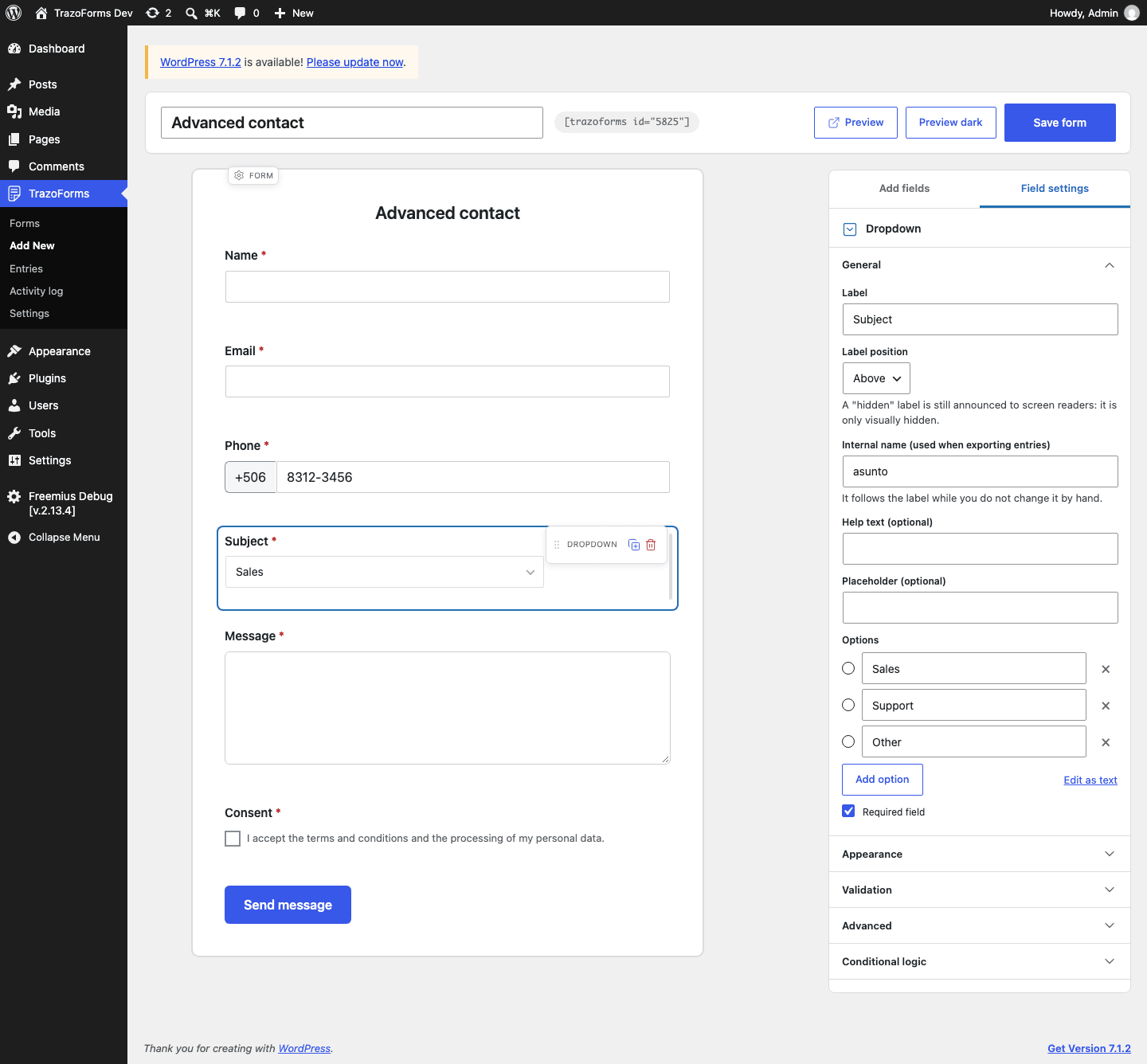
General
Section titled “General”Always open first, since it holds what you set most often:
| Setting | What it does |
|---|---|
| Label | The question visitors see. |
| Label position | Above, left, right or hidden. A hidden label is still announced to screen readers — only shown when you choose Hidden. |
| Internal name | Identifies the field in exports and in merge tags. It follows the label automatically until you either edit it by hand or the form already has entries — from then on, changing it would leave existing answers under the wrong name, so it stops following. |
| Help text | An explanation shown with the field. |
| Help text position | Below or above the field. Only appears once you have written help text. |
| Placeholder | Example text inside the empty field. It disappears as soon as the visitor types, so never put essential instructions there — use the help text instead. |
| Type-specific settings | Any setting unique to the field type, such as a regular expression for single-line text, or the minimum/maximum for a number field. See Field types. |
| Default value | The value the field starts with. |
| Required field | Not shown for Consent, which has its own required switch per checkbox. |
Options
Section titled “Options”For dropdowns, multi-selects, multiple choice and checkboxes, write one option per line:
| You write | Visitors see | What is saved |
|---|---|---|
Red |
Red | Red |
blue|Sea blue |
Sea blue | blue |
*green|Green |
Green, preselected | green |
To add many options at once, paste several lines — that is the bulk-load method, there is no separate import.
Appearance
Section titled “Appearance”| Setting | What it does |
|---|---|
| Type-specific appearance settings | For example, visible rows for a paragraph, or marker style for checkboxes. |
| Field width | Six sizes on a 12-column grid: Full width, Three quarters, Two thirds, Half, One third or One quarter. Drag the field’s edge on the canvas, use the keyboard’s left/right arrows, or pick a value directly in the panel. |
| Place next to the field above | Puts this field beside the previous one instead of below it. The gap this can leave is never filled in for you — placing a field next to another is always an explicit choice. On mobile, every field goes back to a single column regardless of this setting. |
| Custom CSS class | For your own styles. |
Validation
Section titled “Validation”| Setting | What it does |
|---|---|
| Type-specific validation settings | For example, minimum/maximum for numbers and dates. |
| Custom error message | Replaces the default message for any rule this field fails. |
| Maximum characters | Shows a live counter that changes color near the limit and states how many characters are left, so it never relies on color alone. |
| Browser autocomplete | The HTML autocomplete value, such as name, email or tel. It lets browsers fill in the field, which also helps people with motor or cognitive disabilities. |
| Reject the field if it contains links | An anti-spam rule. |
| Do not allow duplicate values across entries | Rejects a value already registered in another entry of the same form — useful for invoice or ID numbers. Only active entries count, so a value caught as spam does not block a real one. |
Advanced
Section titled “Advanced”| Setting | What it does |
|---|---|
| Visibility | Visible to everyone or Administrators only. A field for administrators only never appears on the published form; your team sees it in the entries. |
| Fill from a URL parameter | Fills the field from the page address. With the parameter name promo, the address https://example.com/form/?promo=SUMMER fills in SUMMER. |
Conditional logic
Section titled “Conditional logic”Shows or hides the field based on other answers. See Conditional logic.
Edge cases
Section titled “Edge cases”- A maximum never ends up below its minimum: if you set one that would, it is raised to match, with a warning.
- A limit on how many options to choose never exceeds the options the field actually has.
- An invalid regular expression is never saved. The field falls back to accepting any text, with a warning.
- A file type your WordPress site does not allow is discarded, with a warning, even if you tried to add it.
Next step
Section titled “Next step”Continue to Conditional logic to show or hide fields based on other answers.