

Conditional logic
By the end of this page you will know how to show or hide a field based on other answers, and why that stays true even without JavaScript. This is a free feature — every field type can use it.
Conditional logic shows or hides a field based on the answers to other fields. For example, show Company name only when someone answers Company to Are you registering as a person or a company?
Prerequisites
Section titled “Prerequisites”The fields your conditions will compare against must already exist in the form.
Set up a rule
Section titled “Set up a rule”- Select the field that should appear or disappear.
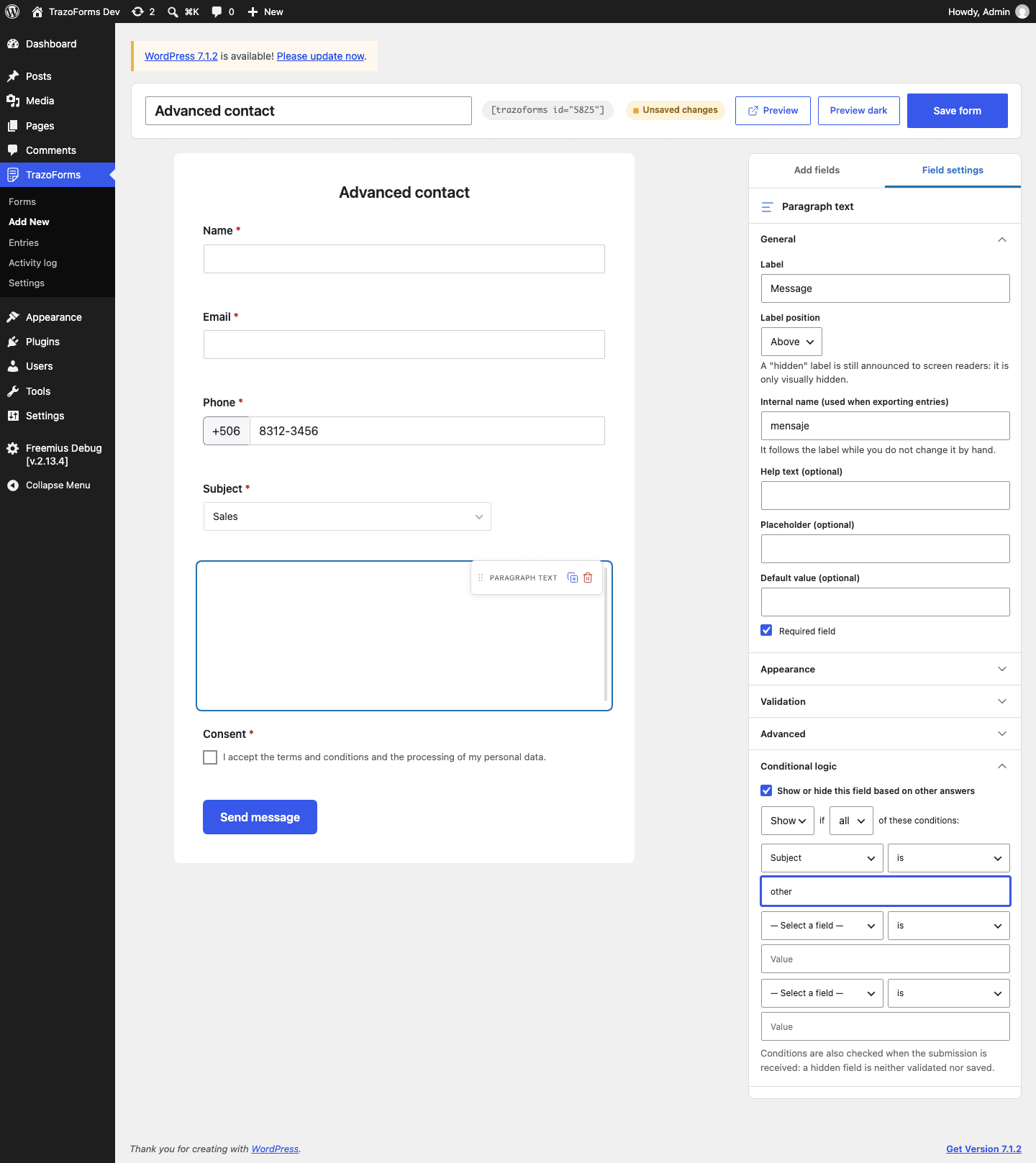
- Under Conditional logic, check Show or hide this field based on other answers.
- Choose Show or Hide, and whether all or any of the conditions must be met.
- Fill in up to three conditions. Each one has a field, an operator and a value.
There are always exactly three rows available, on purpose: this keeps the editor working without JavaScript, since the rows already exist in the page instead of being added by a button. An empty row, with no field chosen, is simply ignored when you save.
Operators
Section titled “Operators”| Operator | Compares | Notes |
|---|---|---|
| is | Exact text | Uppercase and lowercase count. |
| is not | Exact text | Uppercase and lowercase count. |
| is greater than | Numbers | |
| is less than | Numbers | |
| contains | Text | Ignores uppercase and lowercase. An empty value never matches. |
| starts with | Text | Ignores uppercase and lowercase. |
| ends with | Text | Ignores uppercase and lowercase. |
With multi-select and checkboxes, the chosen options are compared as a single text separated by commas, so contains is usually the right operator.
A field cannot be made to depend on itself — it does not appear in its own list of fields to compare against.
It is also checked on the server
Section titled “It is also checked on the server”Rules run in the browser, so fields appear and disappear as the visitor answers. They run again when the form is submitted, and that is what decides:
- A hidden field is neither validated nor saved, even if it is required. A required field that is hidden never blocks a submission.
- A value sent for a hidden field is discarded, even if someone manipulates the form in their browser.
The form also works without JavaScript: the conditions are then applied only when the form is submitted.
Conditions in other places
Section titled “Conditions in other places”- In multi-page forms (Pro), a step whose fields are all hidden is skipped, and the step numbering adjusts.
- Notifications and confirmations can also have conditions, as part of TrazoForms Pro. It is the same engine; what Pro adds is being able to edit conditions on those two, not a different kind of logic.
Edge cases
Section titled “Edge cases”- A rule follows a field by its internal name, so reordering fields on the canvas never breaks a condition. Renaming a field’s internal name, however, can — check your conditions afterwards.
- If you change an operator, remember it runs both in the browser and on the server. The two never disagree, but if something looks off after a change, reload the page to make sure you are seeing the saved version.
Next step
Section titled “Next step”Continue to Multi-page forms (Pro) to split a long form into steps.