

Confirmations
By the end of this page you will know how to decide what happens right after a successful submission, and what changes with TrazoForms Pro.
The confirmation decides what happens after a successful submission. It is under the Submit button, in After submission. Every form starts with one, named Default confirmation, with the message “Thank you! We have received your information.” — free to edit or replace.
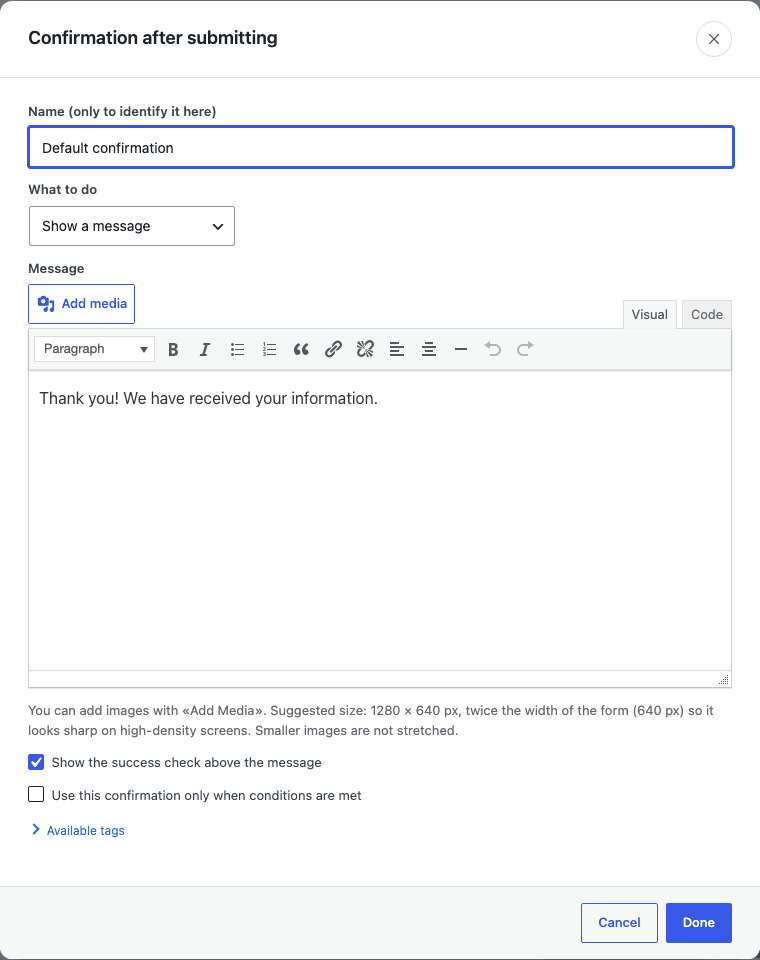
| Type | What it does |
|---|---|
| Show a message | Replaces the form with your message, written in the same visual editor used elsewhere in the plugin, with images (a suggested size of 1280×640 px) and an optional checkmark shown above the message. The message can include merge tags. |
| Go to a page on this site | Pick any published page, or — None —. |
| Redirect to a web address | The address can include merge tags; their values are URL-encoded, so an answer with & or ? does not break the address. |
The message is shown even if the visitor’s browser does not run JavaScript, and screen readers announce it.
Which one is used
Section titled “Which one is used”Unlike notifications, only one confirmation is ever shown per submission — pick it with a single-choice switch next to each one, not a per-row on/off. Its state is shown as one of:
- In use — this is the one shown, if no conditional one matches first.
- With conditions — only shown when its conditions are met (Pro).
- Saved, not shown — kept, but not currently reachable.
There is no live preview button for confirmations (unlike notifications); the visual editor is your best way to check how it will look.
Conditional confirmations
Section titled “Conditional confirmations”A form can have several confirmations, each with its own conditions. For example, send people who choose Sales to a sales page, and show everyone else the default message.
The first confirmation whose conditions are met is used, so keep the general one, without conditions, last — it acts as the fallback that guarantees someone always sees something.
Without a Pro license, Add confirmation and Duplicate confirmation do not appear, and the conditions checkbox and rule editor on a confirmation are hidden. Remove, reordering, and choosing which one is in use all stay available either way — you can never end up with zero confirmations, since the last remaining one cannot be removed.
Edge cases
Section titled “Edge cases”- A confirmation created under Pro keeps its conditions if the site later runs without a license — its rules are not silently cleared, only uneditable until Pro returns.
- A brand-new confirmation, created without a license, has no conditions to preserve.
Next step
Section titled “Next step”Continue to Merge tags to see every dynamic tag and where each one works.